[tldr] Quick Verdict:
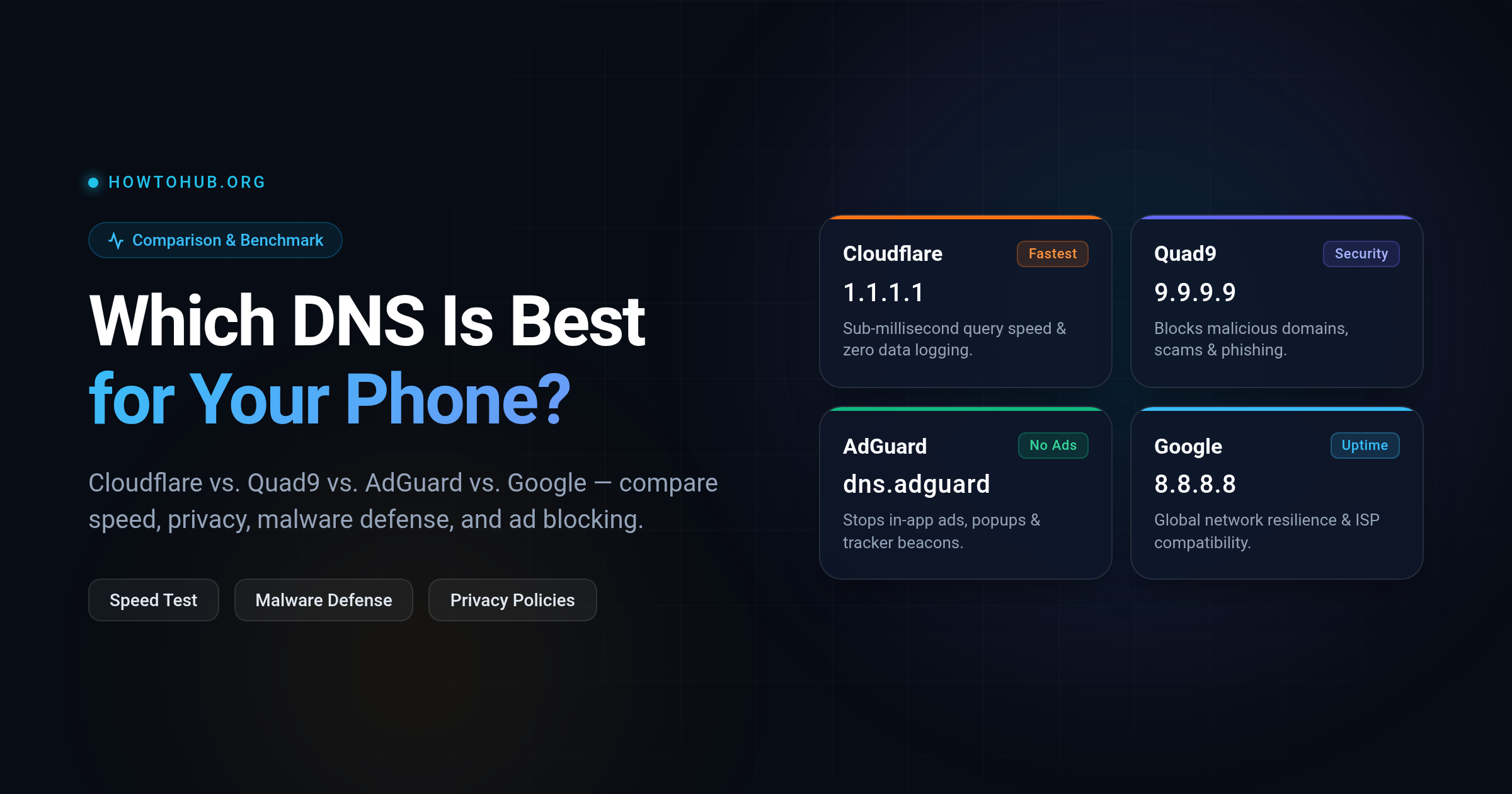
- Choose Cloudflare (1.1.1.1) if you want the absolute fastest page-load response times.
- Choose Quad9 (9.9.9.9) if your priority is blocking malware, spyware, and phishing links.
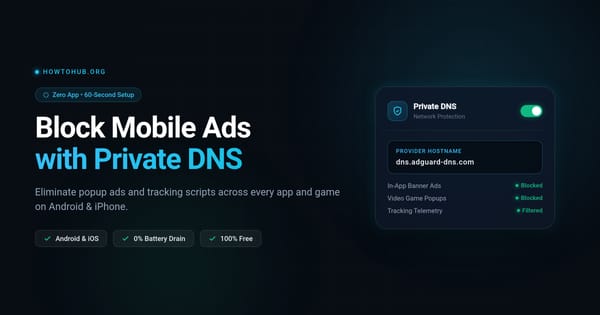
- Choose AdGuard (dns.adguard-dns.com) if you want to stop ads and popups inside apps.
- Choose Google (8.8.8.8) for maximum global uptime and ISP compatibility.
[/tldr] [howto_callout type="tip"] Keep this cheat sheet handy (🔖): Bookmark this page so you don't have to look up DNS IP addresses and Private DNS hostnames when setting up your router, PC, or phone. [/howto_callout]
The 4 Major DNS Resolvers Compared
Every time you click a link, your phone asks a DNS server to translate the domain into an IP address. Default ISP resolvers are often slow and log your browsing history. Here is how the top free options compare:
| Provider | IPv4 Addresses | Android Private DNS | Main Strength |
|---|---|---|---|
| Cloudflare | 1.1.1.11.0.0.1 |
one.one.one.one |
Fastest global response, zero query logging |
| Google Public DNS | 8.8.8.88.8.4.4 |
dns.google |
Maximum reliability, globally distributed |
| Quad9 Security | 9.9.9.9149.112.112.112 |
dns.quad9.net |
Automated threat blocking, Swiss privacy laws |
| AdGuard DNS | 94.140.14.1494.140.15.15 |
dns.adguard-dns.com |
System-wide ad, tracker, and popup blocking |
How to Change DNS on Any Android Phone
Android 9+ supports encrypted Private DNS natively. You don't need any apps:
[howto_step number="1" title="Open Settings"] Go to Settings ➔ Network & internet (or Connections). [/howto_step] [howto_step number="2" title="Select Private DNS"] Tap Private DNS ➔ Private DNS provider hostname. [/howto_step] [howto_step number="3" title="Enter Your Chosen Hostname"] Type one of the following hostnames:
- Fastest Speed:
one.one.one.one - Malware Protection:
dns.quad9.net - Ad Blocking:
dns.adguard-dns.com - Maximum Uptime:
dns.google
[/howto_step] [howto_step number="4" title="Save & Verify"] Tap Save. Visit dnsleaktest.com to verify your new resolver is active. [/howto_step]
How to Change DNS on Your Wi-Fi Router
Changing DNS on your home router protects every device connected to your Wi-Fi—including smart TVs, game consoles, and guest phones:
- Log into your router admin panel (usually
192.168.0.1or192.168.1.1in your browser). - Navigate to WAN or DHCP settings.
- Under DNS settings, change from "Automatic" to "Manual".
- Enter Primary DNS (e.g.
1.1.1.1) and Secondary DNS (e.g.1.0.0.1). - Save and reboot your router.
[howto_callout type="warning"] Speed Reality Check: While Cloudflare and Google have local edge nodes in South Asia (including Dhaka), Quad9 routes through regional hubs like Singapore. In real-world browsing, cached lookups take less than 5ms regardless of provider. Choose for security and features, not just theoretical benchmarks. [/howto_callout]
Frequently Asked Questions
[howto_faq question="Can I combine ad blocking with Cloudflare speed?"] Yes! You can use an ad-blocking browser extension on top of Cloudflare DNS, or set up AdGuard DNS directly if you prefer ad blocking over sub-millisecond DNS differences. [/howto_faq] [howto_faq question="Does changing DNS hide my browsing from my ISP?"] When you use Private DNS (DNS-over-TLS), your ISP cannot see which domain names you are resolving. However, your ISP can still see the destination IP address you connect to. For full anonymity, use a trusted VPN. [/howto_faq] [howto_faq question="Which DNS is best for online gaming?"] Cloudflare (1.1.1.1) and Google (8.8.8.8) offer the lowest jitter and highest routing stability for multiplayer mobile and PC gaming. [/howto_faq]