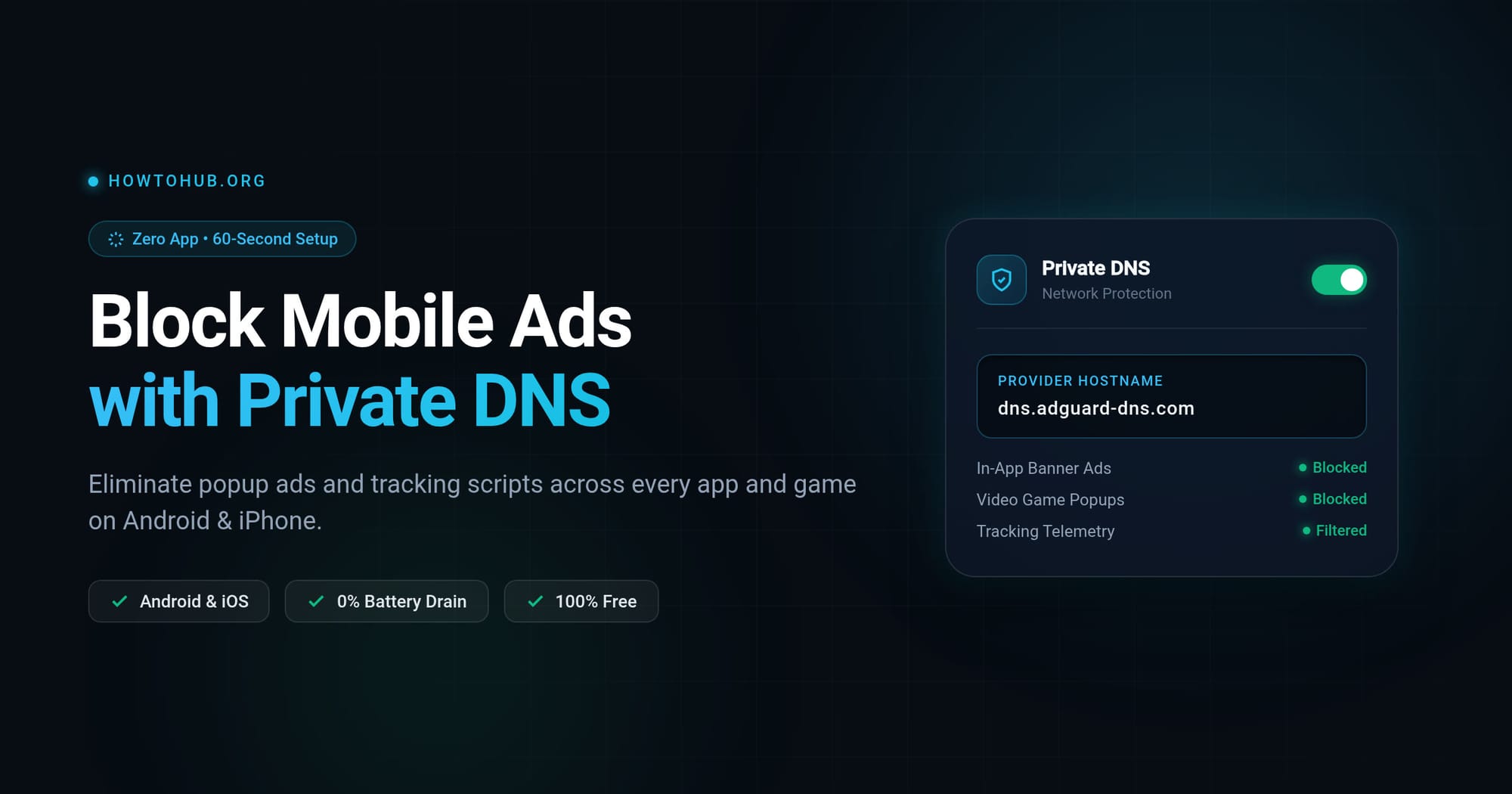
[tldr] Quick Solution: You don't need heavy ad-blocker apps or root access. Set your phone's Private DNS to dns.adguard-dns.com. It blocks ads, tracking scripts, and pop-ups across all apps and games at the network level. Takes 60 seconds and uses 0% extra battery. [/tldr] [howto_callout type="tip"] Bookmark this guide (🔖): Tap the Bookmark button at the top right of this page. You will want this exact hostname handy whenever you get a new device or reset network settings. [/howto_callout]
Why DNS Ad Blocking Beats Ad-Blocker Apps
Traditional ad blocker apps run a continuous background VPN service that consumes RAM, drains battery, and slows your device. Private DNS (DNS-over-TLS) is built directly into Android and iOS:
- System-wide coverage: Blocks ads inside free games, utility apps, and web browsers.
- Zero battery impact: Handled natively by the operating system kernel.
- Works on Wi-Fi and Mobile Data: Your protection stays active wherever you go.
Android Setup: 4 Taps, No App Needed
[howto_step number="1" title="Open Network Settings"] Open your phone's Settings app and tap Network & internet (on Samsung Galaxy devices, tap Connections ➔ More connection settings). [/howto_step] [howto_step number="2" title="Locate Private DNS"] Tap Advanced and select Private DNS. If your manufacturer hid it, simply search for Private DNS in the Settings search bar. [/howto_step] [howto_step number="3" title="Enter the Ad-Blocking Hostname"] Select Private DNS provider hostname and type or paste exactly:
dns.adguard-dns.comNote: Do not put https:// or spaces before or after the hostname. [/howto_step] [howto_step number="4" title="Save and Confirm"] Tap Save. The setting applies instantly. Open any ad-heavy app or website to confirm banners and video pop-ups are gone! [/howto_step]
iPhone & iPad Setup: Configuration Profile
[howto_step number="1" title="Download the Official Profile"] Open Safari on your iPhone or iPad and go to AdGuard Public DNS. Under iOS, select Default server and tap Download configuration profile. [/howto_step] [howto_step number="2" title="Allow and Install Profile"] Tap Allow on the prompt. Next, go to Settings ➔ Profile Downloaded (or General ➔ VPN & Device Management), tap AdGuard DNS, and hit Install. Enter your passcode to confirm. [/howto_step] [howto_step number="3" title="Toggle On or Off Anytime"] The profile now sits inside Settings ➔ General ➔ VPN & Device Management ➔ DNS. You can switch between Automatic and AdGuard DNS in one second whenever needed. [/howto_step]
Alternative DNS Providers at a Glance
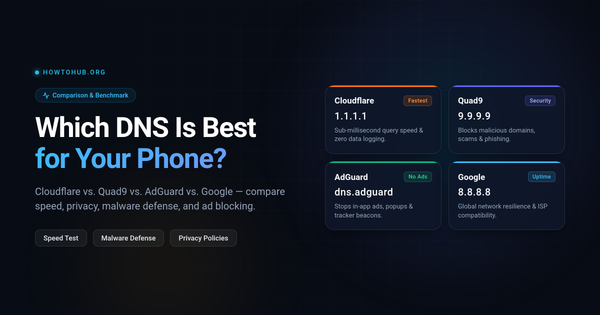
AdGuard isn't the only option. Depending on your primary goal, pick the hostname that matches your needs:
| Provider | Hostname to Copy | Primary Benefit |
|---|---|---|
| AdGuard (Default) | dns.adguard-dns.com |
Stops ads, trackers, and popup scripts |
| AdGuard Family | family.adguard-dns.com |
Blocks ads + adult content + enforces SafeSearch |
| Cloudflare 1.1.1.1 | one.one.one.one |
Maximum raw browsing speed and privacy (no ad blocking) |
| Quad9 Security | dns.quad9.net |
Blocks phishing, malware, and malicious domains |
For an in-depth speed and security benchmark between these resolvers, read our complete DNS Comparison Guide.
[howto_callout type="warning"] Important Limitations:
- YouTube Video Ads: DNS filters cannot block ads played directly within the official YouTube app because YouTube streams ads from the exact same media servers as the videos. Use a browser extension or YouTube Premium for video ads.
- Public Wi-Fi Portals: Hotel or airport login pages occasionally block encrypted DNS. Simply set Private DNS to Automatic while logging in, then switch back.
[/howto_callout]
Frequently Asked Questions
[howto_faq question="Will this DNS slow down my internet connection?"] No. In fact, pages often load faster because your phone never downloads megabytes of bloated ad scripts, tracker pixels, and video banners. [/howto_faq] [howto_faq question="Does this work on mobile data (4G/5G)?"] Yes. Because Private DNS is configured in the Android and iOS system settings, it stays active whether you are connected to home Wi-Fi, office networks, or mobile cellular data. [/howto_faq] [howto_faq question="How do I completely undo this setting?"] On Android, go back to Settings ➔ Private DNS and select Automatic. On iPhone, go to Settings ➔ VPN & Device Management and delete the profile. Your device immediately returns to factory defaults. [/howto_faq]