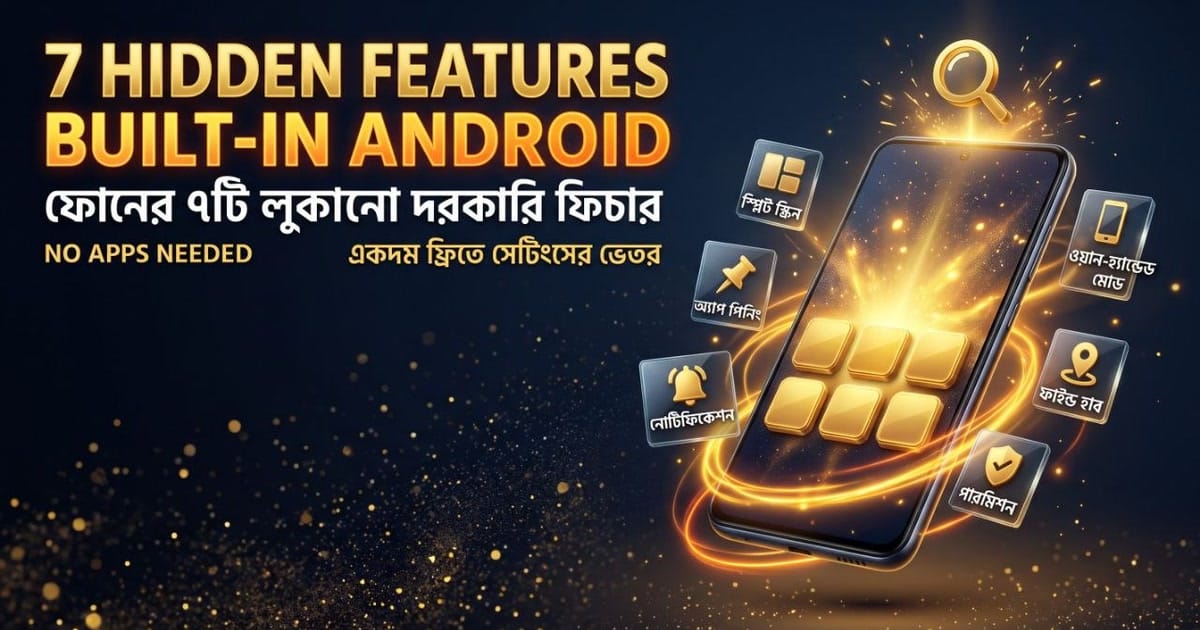
[tldr] The short version: 7 features are already built into your Android phone — split screen, app pinning, notification history, one-handed mode, Quick Share, Find Hub and the permission manager. No app to install. All are found by typing the feature name into Settings → Search. [/tldr] [howto_callout type="tip"] Bookmark this page (🔖) — Settings menus differ between Samsung, Xiaomi, Vivo and Pixel, so you'll come back to this list every time you change phones. [/howto_callout]
The 7 features, in one table
| # | Feature | What it does | Find it by searching |
|---|---|---|---|
| 1 | Split Screen | Two apps side by side | Split screen |
| 2 | App Pinning | Locks the screen to one app when you hand over the phone | App pinning |
| 3 | Notification History | Recovers alerts you cleared by accident | Notification history |
| 4 | One-Handed Mode | Pulls the top of the screen down to your thumb | One-handed mode |
| 5 | Quick Share | Sends big files phone-to-phone without uploads | Quick Share |
| 6 | Find Hub | Locates, locks or erases a lost phone | google.com/android/find |
| 7 | Permission Manager | Shows which app uses camera, mic, location | Permission manager |
How to use each one
[howto_step number="1" title="Split Screen, two apps, one view"] Open both apps → tap Recent apps → tap the app icon → Split screen → pick the second app. Great for video plus notes, or a PDF plus a calculator. [/howto_step] [howto_step number="2" title="App Pinning, hand over the phone safely"] Settings → Search “App pinning” → turn it on → open the one app you want to share → Recent apps → app icon → Pin. To leave, use the back gesture and enter your PIN. [/howto_step] [howto_step number="3" title="Notification History, undo “Clear all”"] Settings → Search “Notification history” → enable → open the history list. Note: only notifications that arrive after you enable it are stored. [/howto_step] [howto_step number="4" title="One-Handed Mode, reach the top of the screen"] Settings → Search “One-handed mode” → enable → choose the gesture or shortcut your brand uses. Built for 6.7-inch screens. [/howto_step] [howto_step number="5" title="Quick Share, no WhatsApp uploads"] Open Gallery or Files → select the item → Share → Quick Share → pick the nearby device → accept on the other phone. Works Android, Chromebook and supported Windows PCs. [/howto_step] [howto_step number="6" title="Find Hub, before you lose the phone"] Sign in with your Google account, keep Location on, and confirm the device appears at google.com/android/find. Then you can ring, lock or erase it from any browser. [/howto_step] [howto_step number="7" title="Permission Manager, see who watches you"] Settings → Apps → Permission manager → tap Camera, Microphone or Location → revoke anything that doesn't need it. Prefer “Only while using the app” over “Allow all the time”. [/howto_step] [howto_callout type="warning"] Two honest limits: brands rename or hide some of these (Xiaomi calls pinning “Screen pinning”; some A-series Samsungs omit one-handed mode), and App Pinning isn't a privacy lock, hide sensitive notifications too before handing the phone over. [/howto_callout]
Quick answers
[howto_faq question="Why can't I find a feature in Settings?"] Type the English feature name into the search bar at the top of Settings. If it still doesn't appear, your Android version or brand doesn't ship it, the core features above need Android 9 or newer. [/howto_faq] [howto_faq question="Does Quick Share need internet or mobile data?"] No. It transfers directly between nearby devices over Wi-Fi and Bluetooth, so large videos don't cost you data. [/howto_faq] [howto_faq question="Is App Pinning enough to protect my data?"] No. It stops casual swiping, not a determined person. Before handing the phone over, also turn on notification hiding and keep a lock screen PIN or fingerprint active. [/howto_faq]
Related guides
Short, tested walkthroughs on the same topics: