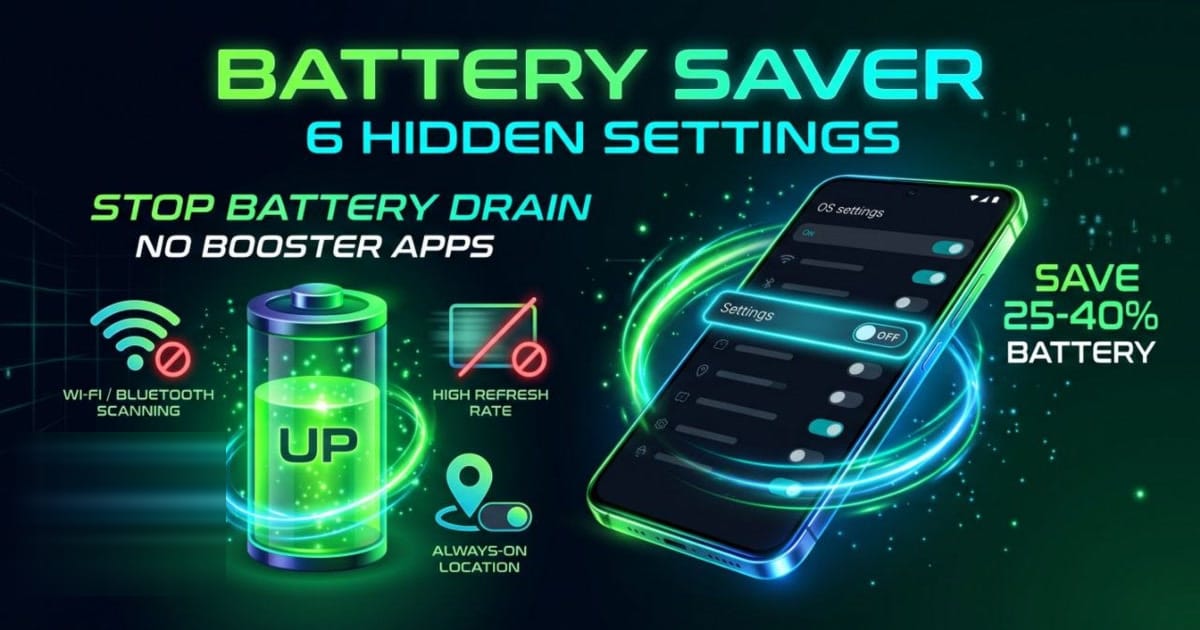
[tldr] Quick Summary: You don't need third-party "battery booster" apps or task killers. Android's biggest battery drains come from hidden background telemetry: constant Wi-Fi/Bluetooth scanning, high refresh rates, and 24/7 location polling. Changing these 6 native settings typically recovers 25% to 40% of your daily battery life. [/tldr] [howto_callout type="tip"] Bookmark this cheat sheet (🔖): Tap the Bookmark button above. you'll want this checklist whenever you set up a new Android phone or receive a major OS update. [/howto_callout]
The Master Battery Optimization Matrix
Here is what is actually draining your battery, ranked by power impact:
| Setting | Where to Find It | Estimated Power Saved | Recommended Action |
|---|---|---|---|
| Wi-Fi & Bluetooth Scanning | Settings ➔ Location ➔ Location Services | 8% — 12% daily | Turn Both OFF |
| Google Location Accuracy | Settings ➔ Location ➔ Location Services | 5% — 10% daily | Turn OFF |
| Display Refresh Rate (120Hz) | Settings ➔ Display ➔ Smooth Display / Motion Smoothness | 15%, 25% screen-on time | Set to Adaptive or 60Hz |
| Background App Activity | Settings ➔ Apps ➔ Select App ➔ Battery | 10%, 15% standby time | Set heavy apps to "Restricted" |
| System Dark Theme (AMOLED) | Settings ➔ Display ➔ Dark Theme | 10%, 30% screen-on time | Turn Always ON |
| 5G Mobile Network Hunting | Settings ➔ Network ➔ SIMs ➔ Preferred network | 10%, 20% in weak signal areas | Switch to LTE/4G if 5G is patchy |
6 Native Settings to Change Right Now
[howto_step number="1" title="Disable Background Wi-Fi & Bluetooth Scanning"] Even when you toggle Wi-Fi and Bluetooth off in Quick Settings, Android secretly keeps the wireless chips powered to scan nearby beacons for location triangulation.
Action: Open Settings ➔ Location ➔ Location services. Turn off both Wi-Fi scanning and Bluetooth scanning. Your normal Wi-Fi and Bluetooth connections will continue working perfectly. [/howto_step] [howto_step number="2" title="Turn Off Google Location Accuracy"] This feature continuously polls nearby cell towers, Wi-Fi routers, and device sensors to estimate your location with microscopic precision, keeping the application processor awake.
Action: In Settings ➔ Location ➔ Location services, tap Google Location Accuracy and toggle it Off. Standard GPS still works for Google Maps navigation. [/howto_step] [howto_step number="3" title="Tame the 120Hz Display Refresh Rate"] A 120Hz screen renders double the frames of a 60Hz screen, drawing up to 35% more GPU power. If your phone forces 120Hz constantly, your battery drains fast.
Action: Go to Settings ➔ Display ➔ Motion smoothness (or Screen refresh rate). Select Adaptive (which drops to 1Hz/10Hz when reading static text) or Standard (60Hz) when you need maximum battery endurance. [/howto_step] [howto_step number="4" title="Restrict Background Hungry Apps"] Social media and shopping apps (such as Facebook, Instagram, TikTok, and food delivery trackers) wake the processor dozens of times per hour even when closed.
Action: Go to Settings ➔ Apps ➔ tap any non-essential app ➔ App battery usage (or Battery). Change from "Optimized" to Restricted. The app will only use power when you actively open it. [/howto_step] [howto_step number="5" title="Switch to Pure Dark Mode (AMOLED / OLED)"] Modern OLED screens produce black by turning pixels completely off, drawing zero electric current. A landmark Purdue University study showed that switching to Dark Mode at high brightness saves between 15% and 30% battery power on OLED panels.
Action: Go to Settings ➔ Display ➔ toggle Dark theme to Always On. Pair it with dark wallpapers for maximum efficiency. [/howto_step] [howto_step number="6" title="Switch from 5G to LTE in Patchy Coverage Areas"] When 5G signal is weak, your phone's modem repeatedly boosts transmission wattage to search for towers, causing severe battery drain and device heat.
Action: Go to Settings ➔ Network & internet ➔ SIMs ➔ Preferred network type. In areas with inconsistent 5G, choose LTE / 4G. 4G speeds are more than fast enough for 4K streaming and gaming, while consuming substantially less power. [/howto_step] [howto_callout type="warning"] 3 Dangerous Battery Myths You Must Stop Believing:
- Myth 1: Swiping apps away from the Recents menu saves power.
Reality: It actually drains MORE battery. Android's Linux kernel keeps suspended apps in RAM with near-zero power. When you force-close an app, the phone has to reload all assets and code from cold flash storage the next time you tap it, spiking CPU wattage. - Myth 2: Third-party "Clean Master" or "Battery Booster" apps work.
Reality: They are bloated spyware. They run continuous background services and display intrusive ads, doing the exact opposite of saving power. - Myth 3: Leaving your phone on the charger overnight ruins it.
Reality: Modern Android phones automatically throttle input current and support "Protect Battery" (limiting charging to 80% or 85%) to prevent chemical degradation.
[/howto_callout]
Frequently Asked Questions
[howto_faq question="Will disabling Wi-Fi scanning break Google Maps navigation?"] No. Turn-by-turn navigation relies on your phone's dedicated hardware GPS receiver. Disabling Wi-Fi scanning only stops passive background triangulation when navigation isn't active. [/howto_faq] [howto_faq question="How do I find which specific app is draining my battery?"] Go to Settings ➔ Battery ➔ Battery usage. Android shows a detailed breakdown of Screen-On time and background CPU usage per application over the last 24 hours. [/howto_faq] [howto_faq question="Does setting Private DNS save battery?"] Yes! By blocking bloated video advertisements and tracking analytics before they load, our Private DNS Guide prevents your phone from downloading megabytes of ad telemetry, conserving CPU and battery. [/howto_faq]
Related guides
Short, tested walkthroughs on the same topics: